Connect Azure Machine Learning with SQL Private Endpoints
The Azure Machine Learning (AML) is an offering by Microsoft that lets Data Scientists, engineers to run ML models into their organization and bring useful insights. Establishing a reliable connectivity pathway between an Azure Machine Learning workspace and an Azure SQL database is a critical requirement for enterprise MLOps architectures. While direct public access introduces significant security and compliance vulnerabilities, routing workloads through conventional workarounds often degrades pipeline performance. By implementing Azure Private Link and configuring private endpoints, organizations can securely establish communication channels entirely within the Microsoft backbone network. This approach effectively eliminates public internet exposure, satisfies enterprise security mandates, and ensures seamless, high-performance data retrieval for downstream model training workflows. In the next section, follow the steps exactly to enabled Managed Virtual Network for your AML workspace that will enable the connectivity with SQL private endpoints. This blog assumes that you have “Disabled” outbound access and Public access from AML.
Pre-requisites
- You must be a Owner/Contributer access on the AML resource or to the subscription level.
- You must delete any existing Compute Clusters and Managed Online Endpoints.
- Create SQL private endpoints if not created already.
Enable Outbound Access from AML
- Go to Azure Portal > Azure Machine Learning
- Go to the Networking tab
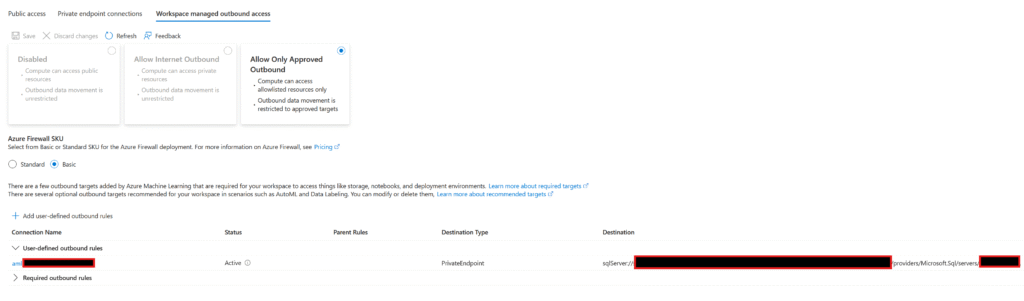
- Select “Allow only approved outbound”
- You will now see an option to select Azure Firewall SKU to be created. Select “Basic” if you are looking for less cost and less utilization.
- You will also see an option to create User Defined Rules. There are two types of UDRs:
- Private Endpoint: Choose this option when you want to connect to your existing Azure applicable resource with Private Endpoint.
- FQDN: Choose this option when you want outbound access to any external URLs like Github, pypi etc.
- Service Tag: Choose this option when you want broader connectivity to any Microsoft based service like Entra ID, Event Hubs, Office etc.
- We will create one UDR with type Private Endpoint and then choose the subscription, resource group and sub-resource to create the UDR.
- The above step will take 40-45 mins to complete and sync.
Tips:
In my experience, i found following observations which i later confirmed with Microsoft Support and i thought to share it with everyone for help.
- The Azure Firewall created will only be charged once UDR is created and shall be deleted permanently upon deleting the UDR.
- The Azure Firewall will be a managed resource. You will not see in your Azure, its Microsoft to manage it.
- The Azure Firewall will use Managed VNET, not your spoke VNETs.
- If your organization is very cost conscious, you can create the UDR for just a while for the application team testing/validation and then delete it right away. This may cost very minimum.
- You cannot Disable Outbound Access once it is changed to “Allow only approved outbound”
- Read the limitations of Managed VNET for AML here before doing anything!